
How to Turn Off AI Suggestions on iPhone
AI features are becoming more common in the iPhone experience. Apple Intelligence can help with tasks like writing, summaries, images, and Siri, while Siri itself can also suggest apps, actions, reminders, and other information based on how you use your phone.
That can be useful. But not everyone wants their iPhone constantly making suggestions.
If you are searching for how to turn off AI suggestions on iPhone, the first thing to know is that there is no single switch called “AI Suggestions.” The correct setting depends on what type of suggestion you want to stop.
You may want to:
- Turn off Apple Intelligence completely
- Disable Siri Suggestions
- Stop suggestions from appearing on the Home Screen
- Turn off AI suggestions inside specific apps
- Disable ChatGPT suggestions
- Restrict Apple Intelligence Writing Tools
The good news is that Apple allows you to control most of these features individually.

Quick Answer: How to Turn Off AI Suggestions on iPhone
If you want to stop most Apple Intelligence features, go to:
Settings > Apple Intelligence & Siri > Apple Intelligence > Turn Off
If you only want to stop Siri from recommending apps, actions, or notifications, go to:
Settings > Apple Intelligence & Siri > Siri Suggestions
From there, you can turn off options such as:
- Show in App
- Show on Home Screen
- Suggest App
- Suggestion Notifications
You can also control suggestions for individual apps without disabling everything because AI may change your mind.
The exact options available on your iPhone may vary depending on your iOS version, device model, language, and region.
Turn Off Apple Intelligence Completely
The simplest option is to disable Apple Intelligence entirely.
This is the best choice if you do not want Apple’s generative AI features appearing across your iPhone.
To turn it off:
- Open Settings.
- Tap Apple Intelligence & Siri.
- Find the Apple Intelligence option.
- Turn the switch off.
Apple’s current iPhone guidance confirms that Apple Intelligence can be disabled directly from the Apple Intelligence & Siri section in Settings.
Turning off Apple Intelligence may affect features such as AI-powered Writing Tools, summaries, image generation features and some newer Siri capabilities.
However, this does not necessarily mean every Siri feature disappears. Siri and Apple Intelligence are related, but some Siri functions can continue to work separately.
Turn Off Siri Suggestions on iPhone
For many people, Siri Suggestions are what they actually mean when they say AI suggestions.
These suggestions can appear based on your routines and activity. Your iPhone may recommend an app, suggest an action, remind you about something, or display suggestions in search and other areas of the system.
To change these settings:
- Open Settings.
- Tap Siri or Apple Intelligence & Siri.
- Find Siri Suggestions.
- Turn off the suggestion options you do not want.
Depending on your iOS version, Apple lists options including:
- Show in App
- Show on Home Screen
- Suggest App
- Suggestion Notifications
Apple also allows Siri Suggestions to be controlled separately for individual apps.
This is usually the better option if you still want to use Siri but do not want your iPhone constantly predicting what you might want to do next.
Turn Off AI Suggestions for a Specific App
You may not want to disable suggestions across your entire iPhone.
For example, perhaps you are happy to receive suggestions from Maps or Calendar but do not want them from a social media or shopping app.
Apple allows app-by-app controls for Siri Suggestions.
Try these steps:
- Open Settings.
- Tap Siri or Apple Intelligence & Siri.
- Tap Apps.
- Select the app you want to change.
- Turn off the available Siri or suggestion settings.
Apple says Siri Suggestions are enabled for apps by default, but users can customize or disable them for individual apps.
This approach gives you more control than simply turning off everything.
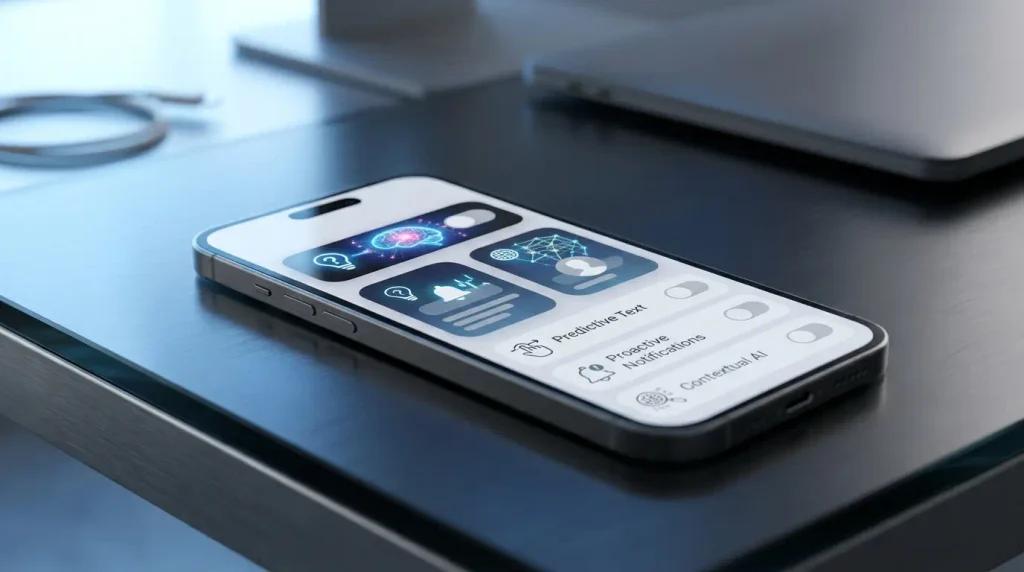
How to Stop AI Suggestions on the Home Screen
If suggested apps or actions are appearing on your Home Screen, you may not need to disable Apple Intelligence completely.
Instead:
- Open Settings.
- Tap Apple Intelligence & Siri.
- Open the relevant Siri Suggestions settings.
- Turn off Show on Home Screen if that option is available.
This allows you to reduce visible suggestions while keeping other Siri features enabled.
It can be a useful middle ground for people who still use Siri but prefer a cleaner iPhone interface.
Turn Off ChatGPT Suggestions on iPhone
On supported iPhones, Apple Intelligence can integrate with ChatGPT in certain experiences.
If you do not want Siri or Apple Intelligence to use ChatGPT, Apple provides a separate control.
Go to:
Settings > Apple Intelligence & Siri > ChatGPT
Then turn off Use ChatGPT.
How ChatGPT is becoming more deeply integrated into Apple’s ecosystem
Apple also says that users who do not want Siri to suggest ChatGPT can disable ChatGPT-related setup prompts where available.
This is important because turning off general Siri Suggestions and turning off ChatGPT integration are not necessarily the same thing.
If your concern is specifically that Siri keeps offering ChatGPT as an option, check the ChatGPT settings rather than disabling Siri entirely.
How to Turn Off Writing Tools on iPhone
Apple Intelligence includes Writing Tools that can proofread, rewrite, summarize, and reorganize text.
Some users like these tools. Others simply do not want AI options appearing while they write.
On iPhone, Apple documents a Screen Time method for restricting access to Writing Tools.
The path is:
Settings > Screen Time > Content & Privacy Restrictions > Intelligence & Siri > Writing Tools
From there, you can change whether Writing Tools are allowed.
This can be particularly useful on a shared device or an iPhone used by a child.
Read More How to Turn On Mobile Data on DialN Nova Phone: Complete Step-by-Step Guide
Can You Turn Off Only Some of the AI Features?
Yes, and this is probably the best approach for many people.
You do not have to choose between accepting every AI feature or turning off everything.
For example, you could:
- Keep Apple Intelligence enabled
- Turn off Siri Suggestions on the Home Screen
- Disable suggestions for selected apps
- Turn off ChatGPT integration
- Restrict Writing Tools
That gives you a more personalized setup.
Apple Intelligence includes multiple features across iOS, including writing assistance, summaries, image-related features, Siri capabilities and integrations with apps. Because these features are not all controlled by one universal setting, you may need to adjust more than one option to get the exact experience you want.
Why Are AI Suggestions Appearing on My iPhone?
Your iPhone can make suggestions based on several factors.
Siri Suggestions, for example, can use patterns in how you use apps and your device to suggest possible actions.
Apple gives examples such as suggesting calendar actions, related webpages, or app actions based on your activity.
That means the suggestions you see may change over time.
If you repeatedly use a particular app at the same time, contact certain people, visit specific websites, or perform similar actions, your iPhone may try to make those actions easier to access.
For some people, that feels convenient.
For others, it simply creates clutter.
Should You Turn Off Apple Intelligence or Just Disable Suggestions?
This depends on what is bothering you.
Turn off Apple Intelligence if:
- You do not use Apple’s AI features
- You want to remove as many generative AI features as possible
- You do not want AI writing, summary, or image features
- You prefer a simpler iPhone experience
Keep Apple Intelligence on but disable suggestions if:
- You still want selected AI tools
- You use Writing Tools occasionally
- You want newer Siri features
- You only dislike predictive recommendations
Disable suggestions for individual apps if:
- Only certain apps are annoying
- You still find some Siri recommendations useful
- You want more precise control
For most users, I would start with the least drastic option: turn off the specific suggestions that are bothering you first.
You can always disable Apple Intelligence completely later.
What Happens When You Turn Off Apple Intelligence?
When Apple Intelligence is turned off, features that depend on it may no longer be available.
Apple’s documentation notes that Apple Intelligence powers a range of features across the iPhone, including Writing Tools, certain Siri experiences, summaries, and other AI-powered capabilities.
The exact impact depends on your iPhone model and software version.
If you are unsure whether you want to disable it permanently, try turning off individual suggestion settings first.
What If You Cannot Find Apple Intelligence & Siri?
Not every iPhone displays exactly the same settings.
The options you see can depend on:
- Your iPhone model
- Your iOS version
- Your country or region
- Your selected language
- Whether Apple Intelligence is supported on your device
Apple notes that Apple Intelligence is not available on all iPhone models, languages, or regions.
If you do not see Apple Intelligence & Siri, you may instead see a menu labeled Siri or a similar Siri-related option.
Try searching within the Settings app for:
Siri
Apple Intelligence
or
Suggestions
The search bar in Settings can often be faster than manually checking every menu.
How to Turn Off Siri Completely
If you want to go further and stop Siri itself from responding to voice requests, you can disable Siri.
According to Apple’s current guidance, go to:
- Settings
- Apple Intelligence & Siri or Siri
- Talk to Siri or Talk & Type to Siri
- Select Off
You can also disable the Side Button option for Siri if you no longer want Siri to activate from the iPhone’s side button.
This is the most aggressive option and usually is not necessary if your only problem is AI suggestions.
The Best Way to Reduce AI Suggestions on iPhone
If you want my recommendation, follow this order:
Step 1: Identify the suggestion
Ask yourself where the unwanted suggestion appears:
- Home Screen?
- Search?
- Notifications?
- Inside an app?
- While writing?
- When using Siri?
Step 2: Turn off that specific feature
Avoid disabling everything immediately.
For example:
- Home Screen recommendation → disable Show on Home Screen
- App recommendation → disable suggestions for that specific app
- ChatGPT prompt → disable Use ChatGPT
- Writing Tools → restrict Writing Tools
- All Apple AI features → turn off Apple Intelligence
Step 3: Disable Apple Intelligence only if necessary
This keeps useful features available while removing the parts you do not want.
Final Thoughts
Learning how to turn off AI suggestions on iPhone is slightly more complicated than it should be because “AI suggestions” can refer to several different features.
There is no single setting that covers every recommendation, prompt, and AI tool on the iPhone.
The fastest solution is to go to Settings > Apple Intelligence & Siri and decide whether you want to:
- Turn off Apple Intelligence completely
- Disable Siri Suggestions
- Customize suggestions for specific apps
- Turn off ChatGPT integration
- Restrict Writing Tools
For most people, disabling specific Siri Suggestions first is the best option. It reduces unwanted recommendations without removing every useful Apple Intelligence feature from the iPhone.
If you later decide you do not want Apple’s AI features at all, you can return to the same settings area and turn off Apple Intelligence completely.
FAQs
How do I turn off AI suggestions on my iPhone?
Go to Settings > Apple Intelligence & Siri and adjust Apple Intelligence or Siri Suggestions. The correct option depends on whether you want to disable Apple Intelligence completely or only specific recommendations.
Can I turn off Siri Suggestions without disabling Siri?
Yes. You can disable selected Siri Suggestions while continuing to use Siri for voice commands and other tasks.
How do I turn off Apple Intelligence completely?
Go to Settings > Apple Intelligence & Siri and turn off Apple Intelligence.
Can I turn off ChatGPT suggestions on iPhone?
Yes. Go to Settings > Apple Intelligence & Siri > ChatGPT and turn off Use ChatGPT.
Why do I still see AI suggestions after turning off one setting?
Different AI and suggestion features have separate controls. For example, Siri Suggestions, Apple Intelligence, ChatGPT integration and Writing Tools may need to be adjusted individually.
![Top [count] Technology Blogs & Websites - OnToplist.com](https://www.ontoplist.com/images/ontoplist31.png?id=6aa1bb828dc43)