

ChatGPT Can Now Read and Send iMessages on Mac With New Apple Messages Plugin
ChatGPT can now work directly with conversations in Apple’s Messages app on Mac, allowing users to search chats, summarize conversations, draft replies and send messages without manually copying text between applications.
The new Apple Messages plugin expands ChatGPT’s integration with macOS and works with iMessage, SMS and RCS conversations stored in Apple’s Messages app. OpenAI announced the feature on August 20, while additional reporting published on August 21 provided more details about how the integration works and the permissions it requires.
What Can ChatGPT Do With Apple Messages?
With the Apple Messages plugin enabled, ChatGPT can perform several tasks involving conversations stored on a user’s Mac.
According to OpenAI’s announcement and subsequent reporting, users can ask ChatGPT to:
- Search for specific messages or conversations
- Find information buried in old chats
- Summarize long conversations
- Analyze message threads
- Draft replies
- Edit suggested responses
- Send messages through Apple’s Messages app
The plugin supports conversations delivered through iMessage, traditional SMS and RCS, making the integration broader than a simple iMessage-only feature.
That means a user could potentially ask ChatGPT to find an address mentioned in an old conversation, catch up on a busy group chat or prepare a reply without manually searching through hundreds of messages.
ChatGPT Can Send Messages, but Approval Is Enabled by Default
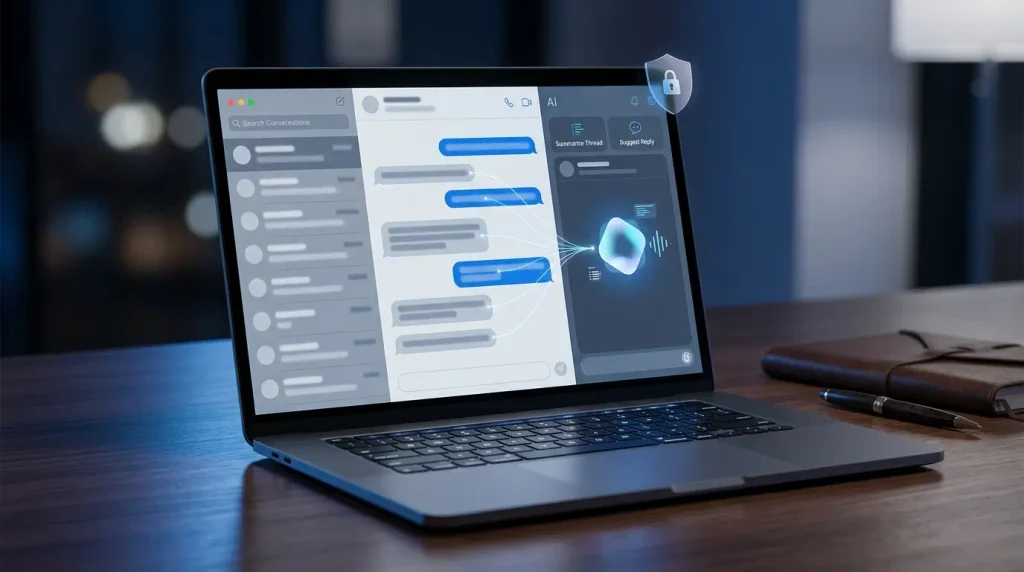
One of the most notable parts of the new integration is ChatGPT’s ability to send messages.
However, outgoing messages require confirmation by default. Before sending a message, ChatGPT asks the user to approve the message and its recipients.
Users can choose to create persistent approval for specific chats, allowing future messages to be sent automatically. OpenAI has warned that removing the final confirmation step can increase the risk of messages being sent based on misleading or untrusted instructions, making manual approval the safer option for sensitive conversations.
The confirmation system is particularly important because the Messages app can contain highly personal conversations, including family chats, financial discussions and private work communications.
What Permissions Does the ChatGPT Messages Plugin Need?
The feature requires users to grant macOS permissions that allow ChatGPT to interact with Apple’s Messages app.
Recent reporting says the plugin requires permissions including:
- Automation access to interact with Messages
- Contacts access to identify recipients
- Full Disk Access to search message history
Those permissions explain why the new feature is already raising privacy questions. Full Disk Access is a particularly broad macOS permission because it can allow an application to access data that would otherwise be restricted.
Users should therefore understand exactly what access they are granting before enabling the plugin.
Does ChatGPT Upload All of Your Messages?
The answer is not as simple as saying that every message is automatically uploaded to ChatGPT.
The feature allows ChatGPT to access and work with information from Apple Messages when a user requests a task, but users should still consider the privacy implications of giving an AI application access to potentially sensitive conversations.
OpenAI has previously published information explaining how data handling works when ChatGPT is used through Apple’s broader operating-system integrations, with the treatment of data depending on whether a user is signed in and on their applicable ChatGPT settings. However, users should not assume that every Apple integration follows identical technical or data-handling rules.
For this new Messages plugin, the safest approach is to review the permissions presented by macOS and OpenAI before enabling access.
Which Macs Support the New Apple Messages Plugin?
The latest reporting indicates that the integration is available through the ChatGPT desktop app on Apple Silicon Macs.
It is also reported to be available across ChatGPT plans through the desktop application, including ChatGPT Work and Codex-related desktop access. Availability may still depend on having the latest version of the application and the required macOS permissions enabled.
The plugin does not turn Apple’s Messages app into a way to chat with ChatGPT. Instead, it allows ChatGPT running on the Mac to work with conversations already stored in the Messages application.
Why the New ChatGPT iMessage Integration Matters
Until now, a typical workflow involved asking ChatGPT to write a message, copying the response and then pasting it into Messages.
The new integration brings those steps closer together.
For example, a user could potentially ask ChatGPT to:
Find the conversation where my colleague sent the meeting location and draft a short reply confirming that I will attend.
ChatGPT could search the relevant conversation, use the available context to draft a response and then present the message for approval before it is sent.
That makes the feature significantly more useful than a standard text-generation tool, but it also moves ChatGPT deeper into applications containing personal data.
Recent reporting has highlighted this tension: the convenience of AI increases as it gains access to more context, but greater context also means access to more sensitive information.
The Bottom Line
ChatGPT’s new Apple Messages plugin gives the AI assistant much deeper access to communication on compatible Macs.
Users can search iMessage, SMS and RCS conversations, summarize chats, analyze messages, draft replies and send messages through Apple’s Messages app. Outgoing messages require approval by default, while users must grant several macOS permissions before the integration can access their conversations.
The feature could be particularly useful for people managing large volumes of personal or work messages. At the same time, it raises an important question for users: how much access are they comfortable giving an AI assistant in exchange for greater convenience?
As OpenAI continues pushing ChatGPT deeper into desktop workflows, the new Messages integration may offer an early example of how AI assistants are evolving from tools that simply answer questions into software that can search, understand and take actions across the applications people use every day.