

How to Turn On Mobile Data on DialN Nova Phone: Complete Step-by-Step Guide
Mobile data is one of the most important features of any smartphone. Whether you want to browse websites, use social media apps, watch videos, send WhatsApp messages, or access online services, you need a working mobile data connection.
Many DialN Nova phone users often ask the same question: how to turn on mobile data on DialN Nova phone. While the process is usually simple, some users may struggle to find the correct settings, especially if they are new to smartphones or have recently changed devices.
As someone who has worked with Android smartphones, mobile troubleshooting, SIM network settings, and internet connectivity issues for many years, I can confidently say that most mobile data problems are caused by incorrect settings rather than hardware faults.
In this detailed guide, I will explain exactly how to turn on mobile data on a DialN Nova phone, how to configure internet settings, and what to do if mobile data is not working after activation.
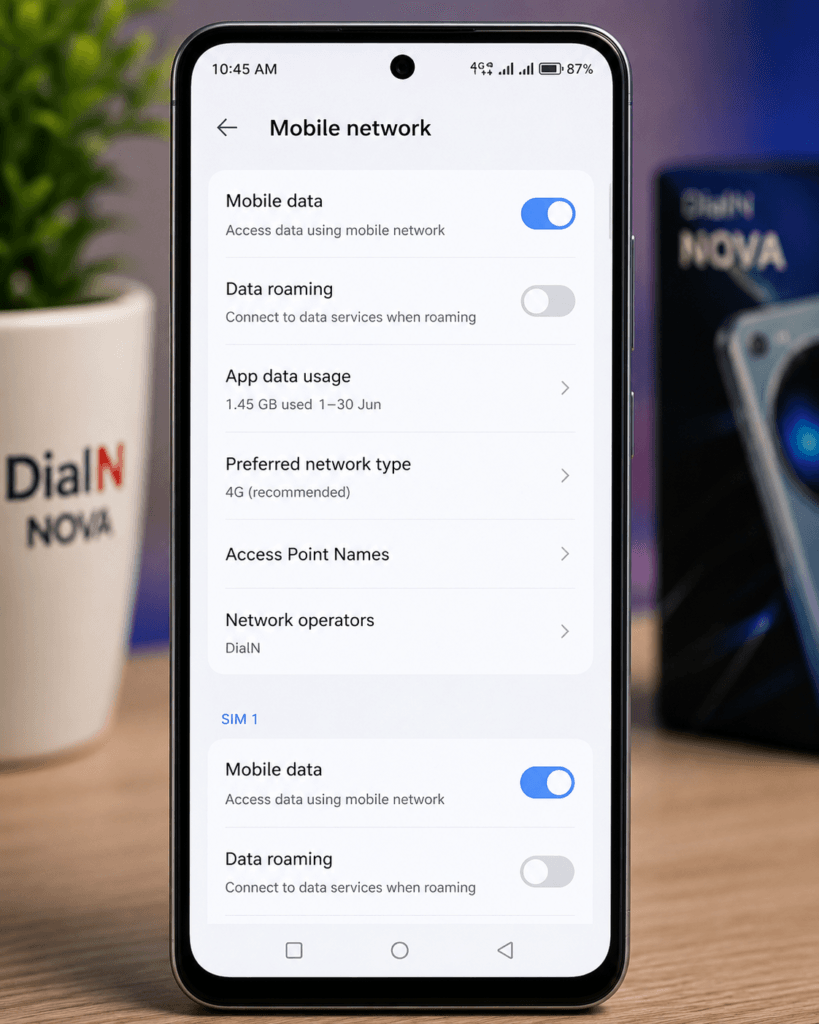
Understanding Mobile Data on DialN Nova Phones
Before enabling mobile data, it helps to understand what mobile data actually does.
Mobile data allows your phone to connect to the internet through your mobile network provider instead of using Wi-Fi. Your SIM card communicates with nearby cellular towers and provides internet access wherever network coverage is available.
Most DialN Nova phones run on Android-based operating systems, which means the process for enabling mobile data is similar to many Android devices.
When mobile data is enabled, you can:
- Browse websites
- Use Facebook and Instagram
- Send WhatsApp messages
- Watch YouTube videos
- Download applications
- Use Google Maps
- Access online banking services
If mobile data is turned off, your phone can only access the internet through Wi-Fi.
How to Turn On Mobile Data on DialN Nova Phone
The easiest method is through the Quick Settings panel.
Method 1: Using Quick Settings
Follow these steps:
- Unlock your DialN Nova phone.
- Swipe down from the top of the screen.
- Open the Quick Settings panel.
- Look for the Mobile Data icon.
- Tap the Mobile Data icon.
- The icon should become highlighted or change color.
- Wait a few seconds for the network connection to activate.
Once activated, you should see one of the following symbols near the signal bars:
- E
- 3G
- H+
- 4G
- LTE
- 5G
These indicators confirm that mobile internet is active.
How to Enable Mobile Data Through Settings
If you cannot find the quick settings option, use the phone settings menu.
Method 2: Using Android Settings
- Open Settings.
- Select Network & Internet.
- Tap SIM Cards & Mobile Networks.
- Choose your active SIM card.
- Locate Mobile Data.
- Toggle Mobile Data ON.
Your phone should connect to the internet automatically.
This method is particularly useful when troubleshooting connection problems because it provides access to advanced network settings.
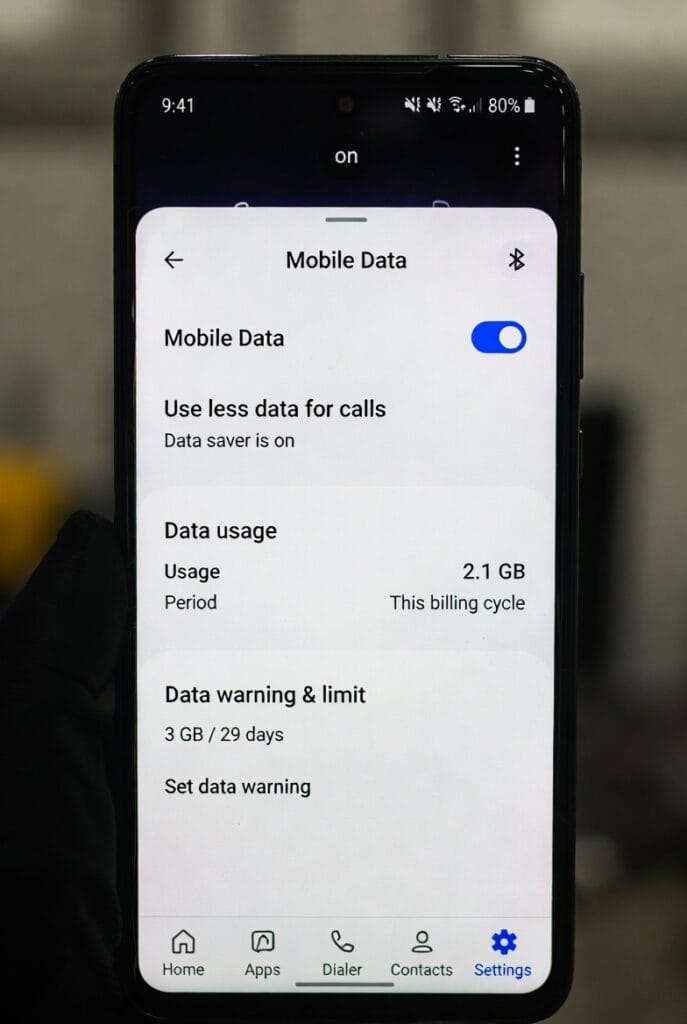
How to Check if Mobile Data Is Working
After enabling mobile data, test the connection.
Open:
- Google Chrome
- YouTube
- Any browser
Try loading a website.
If pages open successfully, your mobile data connection is working properly.
You should also see:
- 4G icon
- LTE icon
- 5G icon
- Data transfer arrows
These indicators confirm active internet usage.
Common Reasons Mobile Data Is Not Working
Many users believe their phone is faulty when mobile data does not work.
In reality, the problem is usually one of the following:
No Network Coverage
If you are in a weak signal area, mobile data may not connect.
Try:
- Moving outdoors
- Changing your location
- Checking network bars
No Data Package
Many network providers require an active internet bundle.
Verify that:
- Your SIM card is active
- Your internet package has not expired
- Your account has sufficient balance
Airplane Mode Enabled
Sometimes users accidentally activate Airplane Mode.
To check:
- Open Quick Settings.
- Look for Airplane Mode.
- Ensure it is turned OFF.
Incorrect APN Settings
APN settings tell your phone how to connect to your mobile operator’s internet service.
Incorrect APN settings can prevent internet access even when mobile data is enabled.
How to Configure APN Settings on DialN Nova Phone
If mobile data still does not work, check the APN settings.
Steps:
- Open Settings.
- Go to Mobile Networks.
- Select Access Point Names (APN).
- Compare settings with your mobile provider.
Common fields include:
- APN Name
- APN Type
- Username
- Password
- Proxy
- MCC
- MNC
If unsure, contact your network operator and request the correct APN settings.
Most providers can automatically send configuration settings through SMS.
Restart the Phone After Enabling Mobile Data
One of the oldest but most effective solutions is restarting the phone.
Restarting:
- Refreshes network connections
- Re-registers the SIM card
- Clears temporary software glitches
- Improves connectivity
Steps:
- Hold the power button.
- Select Restart.
- Wait for the phone to reboot.
- Test mobile data again.
Many network-related issues are resolved with this simple procedure.
How to Switch Preferred Network Type
Sometimes mobile data problems occur because the network mode is incorrectly configured.
Recommended Network Mode
- Open Settings.
- Select Mobile Networks.
- Tap Preferred Network Type.
- Choose:
- 4G/3G/2G Auto
- LTE Preferred
- 5G Auto (if supported)
Avoid selecting 2G only because internet speeds will be extremely slow.
How to Reset Network Settings
If nothing works, resetting network settings often solves connectivity issues.
Steps
- Open Settings.
- Select System.
- Tap Reset Options.
- Choose Reset Network Settings.
- Confirm the action.
This will reset:
- Mobile data settings
- Wi-Fi settings
- Bluetooth settings
After resetting, restart the phone and test mobile data again.
Tips for Better Mobile Data Performance
Based on years of troubleshooting smartphones, these practices improve internet performance significantly.
Keep Software Updated
Software updates often include:
- Network fixes
- Connectivity improvements
- Security enhancements
Monitor Data Usage
Excessive data usage can slow your connection.
Check:
Settings → Mobile Data → Data Usage
Use Strong Signal Areas
Internet speeds depend heavily on network coverage.
Better signal generally means:
- Faster downloads
- Better streaming
- Improved browsing
Remove Unnecessary Apps
Too many background apps can consume data and reduce performance.
Regularly review installed applications.
Why Mobile Data Is Important on a DialN Nova Phone
Mobile data enables the full smartphone experience.
Without mobile internet, users cannot effectively access:
- Social media
- Messaging platforms
- Navigation apps
- Online learning
- Cloud storage
- Digital banking
Whether you use your Dial N Nova phone for work, communication, or entertainment, mobile data plays a critical role in daily usage.
Understanding how to properly enable and troubleshoot mobile data can save significant time and frustration.
Final Thoughts
If you are wondering how to turn on mobile data on DialN Nova phone, the process is generally straightforward.
Simply open the Quick Settings panel or navigate to Network Settings and enable Mobile Data. If the internet does not work immediately, check network coverage, APN settings, SIM status, and preferred network type.
In my experience troubleshooting Android smartphones over many years, most mobile data issues are caused by incorrect settings rather than hardware problems. By following the steps outlined in this guide, most users can successfully activate mobile data and restore internet connectivity within minutes.
Frequently Asked Questions (FAQ)
1. How do I turn on mobile data on a DialN Nova phone?
Swipe down from the top of the screen and tap the Mobile Data icon. Alternatively, go to Settings > Mobile Networks > Mobile Data and enable it.
2. Why is my DialN Nova phone showing signal bars but no internet?
This is often caused by incorrect APN settings, expired data packages, network outages, or disabled mobile data.
3. How can I check if mobile data is active?
Look for symbols such as 3G, 4G, LTE, or 5G near the signal bars. You can also test internet access by opening a website.
4. What should I do if mobile data still does not work?
Restart the phone, verify APN settings, check your SIM card status, ensure you have an active data package, and reset network settings if necessary.
5. Does Dial N Nova support 4G internet?
Support depends on the specific Dial N Nova model and your mobile carrier. Check the phone specifications and network settings to confirm 4G compatibility.
For more info and feedback, you can contact us

Tracking my favorite matches has never been this exciting or easy. It genuinely feels like having a seasoned coach cheering you on from the sidelines. The live updates keep me hooked and the support team treats every user like family. I simply cannot imagine my gaming routine without it.